Digital Images - Grayscale Images
Converting Color Images to B&W (Grayscale) Images - Visit the RGB explorer
- Figure out how to make colors on the grayscale spectrum
- e.g. RGB values to make: dark gray, medium gray, light gray
The RGB scale is calibrated so that when all three red/green/blue numbers of a pixel are equal, the pixel is a shade of gray. Making all the numbers equal, like red=50 green=50 blue=50 drains any bias towards red, green, or blue. If a pixel were red=50 green=75 blue=50 it would be a bit greenish, but making them all equal, it's not towards any particular hue. This works because the displays and other systems using RGB are calibrated so that the all-equal cases are on the black..gray..white spectrum.
Examples of gray colors in RGB: | red | green | blue | color |
|---|
| 50 | 50 | 50 | dark gray | | 120 | 120 | 120 | medium gray | | 200 | 200 | 200 | light gray | | In fact, the original pure black/white colors fit this all-equal pattern too, just using the values 0 and 255. | | 0 | 0 | 0 | pure black | | 255 | 255 | 255 | pure white |
Red Liberty Example ProblemHere is an image of the Statue or Liberty where all of the data is in the red values, so the whole image looks red. The green and blue values are all zero. This image looks quite wrong.
For this example, we'll write code to fix this image by copying the red value over to be used as the green and blue value. So for a pixel, if red is 27, set green and blue to also be 27. What will be the visual result of this?
// your code here
    // get the color values  put  charToNum (char (pixelStart + 2) of image1) into tRed                    put numToChar (tRed) into char (pixelStart + 3) of image1      // Green  put numToChar (tRed) into char (pixelStart + 4) of image1     // Blue
  // Usually code does all three colors,
  // but this code gets a value from one color
  // and sets it into another color.
  // Visual result: grayscale image, since
  // red/blue/green are made equal for each pixel.
and you get this:
Converting Color To Grayscale- How to covert a regular color image to grayscale?
- Problem: for each pixel, how dark/light is it (ignoring hue)
- Choose a few pixels out of flowers.jpg, each in a row below
- Q: which pixel is brightest? darkest?
- We compute average for each pixel
- Reminder: to average 3 numbers, add them up and divide by 3
- average = (red + green + blue)/3
| red | green | blue | average |
|---|
| | | average = (red + green + blue) / 3 | | 200 | 50 | 50 | 100 (medium bright) | | 0 | 75 | 75 | 50 (darkest) | | 100 | 250 | 250 | 200 (brightest) |
Looking at just red or blue or green in isolation, it's hard to tell which pixel is brightest or darkest in the above table. The average combines and summarizes the three values into one number 0..255. The average shows how bright the pixel is, ignoring hue: 0 = totally dark, 255=totally bright, with intermediate average values corresponding to intermediate brightnesses. More complicated brightness measures are possible, but average is simple and works fine for our purposes.
- Average combines red/green/blue into one number
- The average measures how bright the pixel is 0..255
- Ignoring hue
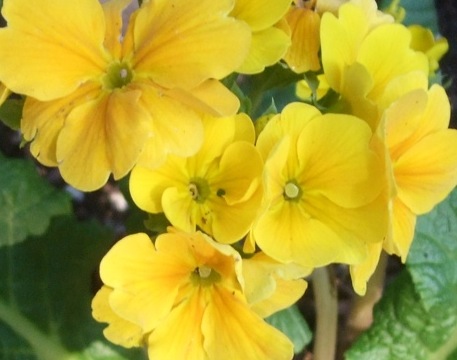
Grayscale Conversion ExampleFor this example, we'll write code to change the flowers.jpg image to grayscale, using the "average" strategy: for each pixel, compute the average of its red/green/blue values. This average number represents the brightness of the pixel 0..255. Then set the red, green, and blue values of the pixel to be that average number. The result is a grayscale version of the original color image. Once its working with flowers.jpg, try it with poppy.jpg or oranges.jpg.
 - Q: must the "avg = ... " line be inside the loop?
- A: yes, it must be inside the loop
- The equals sign (=) does not set up some formula to work for all time
- Computer code is not that powerful generally
- The = just does math when that line runs
- Each pixel has different red/green/blue values
- We need to re-do the addition / divide-3 for each pixel
 // your code here
   repeat with tPixel = 0 to (origHeight  * origWidth ) - 1                  put tPixel * 4 into pixelStart                        // get the color values                  put  charToNum (char (pixelStart + 2) of image1) into tRed                  put charToNum (char (pixelStart + 3) of image1) into tGreen                  put charToNum (char (pixelStart + 4) of image1) into tBlue                        put (  (tRed + tGreen + tBlue) / 3  ) into tAvg                  put numToChar (tAvg ) into char (pixelStart + 2) of image1     // Red                  put numToChar (tAvg) into char (pixelStart + 3) of image1      // Green                  put numToChar (tAvg) into char (pixelStart + 4) of image1     // Blue                  end repeat;
It should look like this:
- When red/green/blue values are equal .. shade of gray
- Average combines red/green/blue into one number
- The average measures how bright the pixel is 0..255
- Convert pixel to grayscale: set red, green, and blue to be the average
- Standard code line to compute average within loop. We'll use this line often for later problems.
put ( (tRed + tGreen + tBlue) / 3) into tAvg
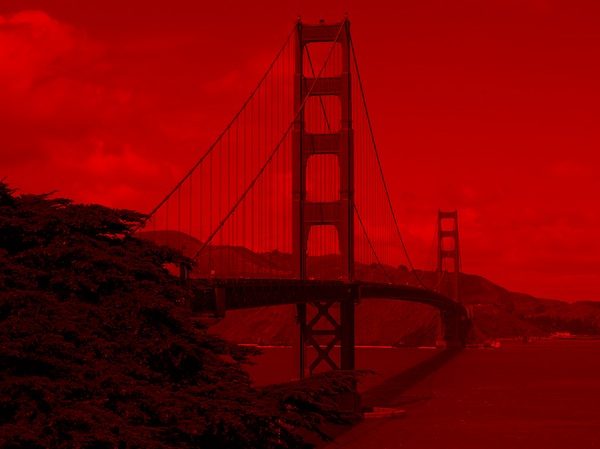
. Red Golden Gate - the image golden-gate-red.jpg shows the golden gate bridge, but all of the data is in the red values.
Write code that for each pixel copies the red value over to be the green and blue value. The result will be to change the image to grayscale which will look better.
Try your hand at other pictures - find the best "threshold" for B&W and compare it to the Grayscale one
|
 Updating... cyril.pruszko@pgcps.org, Dec 22, 2016, 8:05 AM Digital_Image_B&W_1.livecode (1870k) cyril.pruszko@pgcps.org, Dec 22, 2016, 8:02 AM cyril.pruszko@pgcps.org, Dec 21, 2016, 5:43 PM cyril.pruszko@pgcps.org, Dec 21, 2016, 5:43 PM cyril.pruszko@pgcps.org, Dec 22, 2016, 8:05 AM cyril.pruszko@pgcps.org, Dec 22, 2016, 8:05 AM cyril.pruszko@pgcps.org, Dec 22, 2016, 8:05 AM
|